Themes
| If you find any issue or missing info, be awesome and edit this document to help others Roqers. |
It will provide templates, scripts and styles for your site. For advanced usage, refer to the Theme section.
To use a theme layout, refer to it with this prefix`:theme/`.
For example to use the page layout from the theme:
---
title: Roq Page
layout: :theme/page
---

<h1>Hello</h1>
Roq Theme default
This is the default Roq theme for a site or a blog (used on this site):
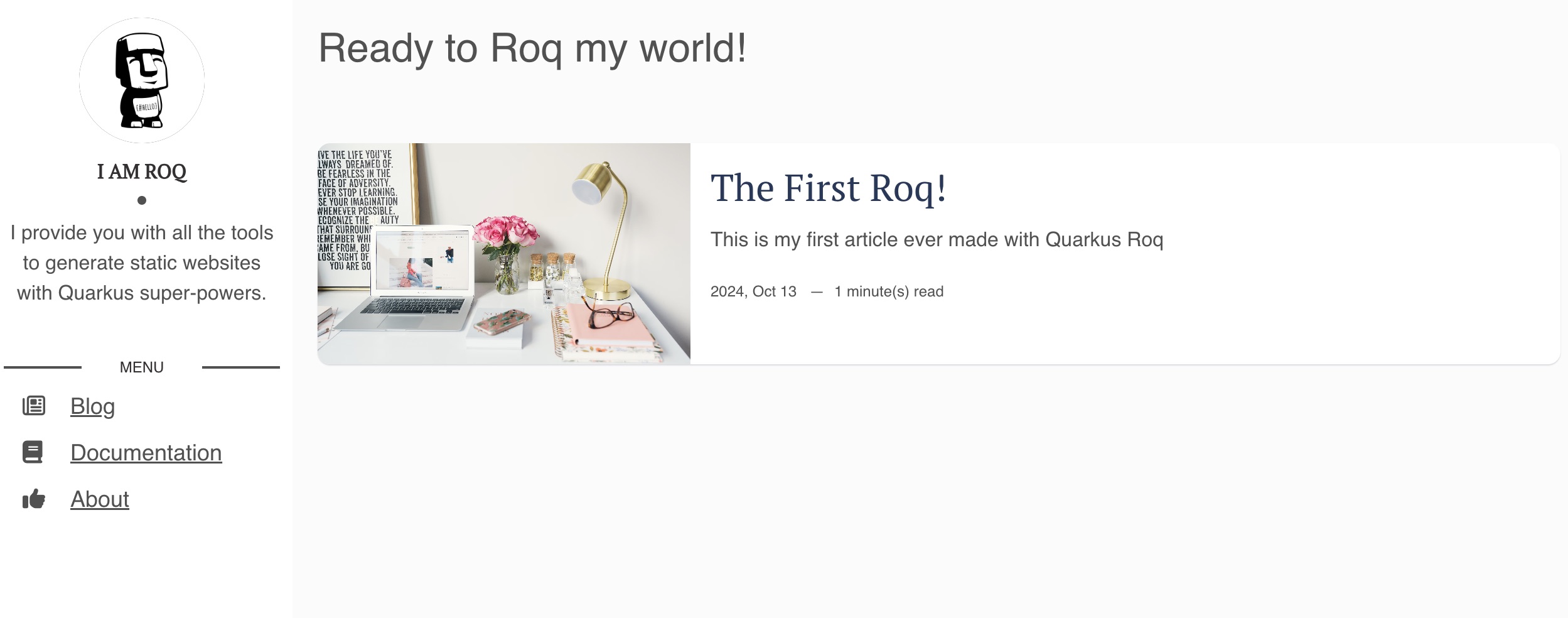
To install this theme, simply add the dependency to your pom.xml.
<dependency>
    <groupId>io.quarkiverse.roq</groupId>
    <artifactId>quarkus-roq-theme-default</artifactId>
    <version>{cdi:project-info.release.current-version}</version>
</dependency>
List of layouts:
default/                (1)
├── main/               (2)
│   ├── index
│   ├── page
│   ├── post
│   └── tag
└── 404
| 1 | The overall HTML structure |
| 2 | Shared site layout (e.g. header, nav, footer) |
Here is the list of partials you may override:
├── partials
│   └── roq-default
│       ├── 404.html
│       ├── head.html
│       ├── pagination.html
│       ├── sidebar-about.html
│       ├── sidebar-contact.html
│       ├── sidebar-copyright.html
│       └── sidebar-menu.html
Social Brands
The default theme provides built-in support for social media links with icons. You can easily add social media links to your site.
To add social media links to your website, create or edit the website’s index.html file:
social-github: quarkiverse
social-twitter: quarkusio
social-linkedin: john-doe
social-mastodon: https://mastodon.social/@username
social-whatsapp: 5511999999999
social-instagram: myproject
social-telegram: mychannel
Available Social Brand Keys
-
social-twitter -
social-github -
social-linkedin -
social-linkedin-company -
social-facebook -
social-youtube -
social-discord -
social-email -
social-bluesky -
social-mastodon(requires full URL) -
social-slack(requires full URL) -
social-whatsapp -
social-instagram -
social-telegram
| For Mastodon and Slack, you must provide the complete URL as these platforms don’t have a standard prefix. |
Roq Theme resume
Creating your own online resume has never been this easy with the Roq theme for a personal resume:
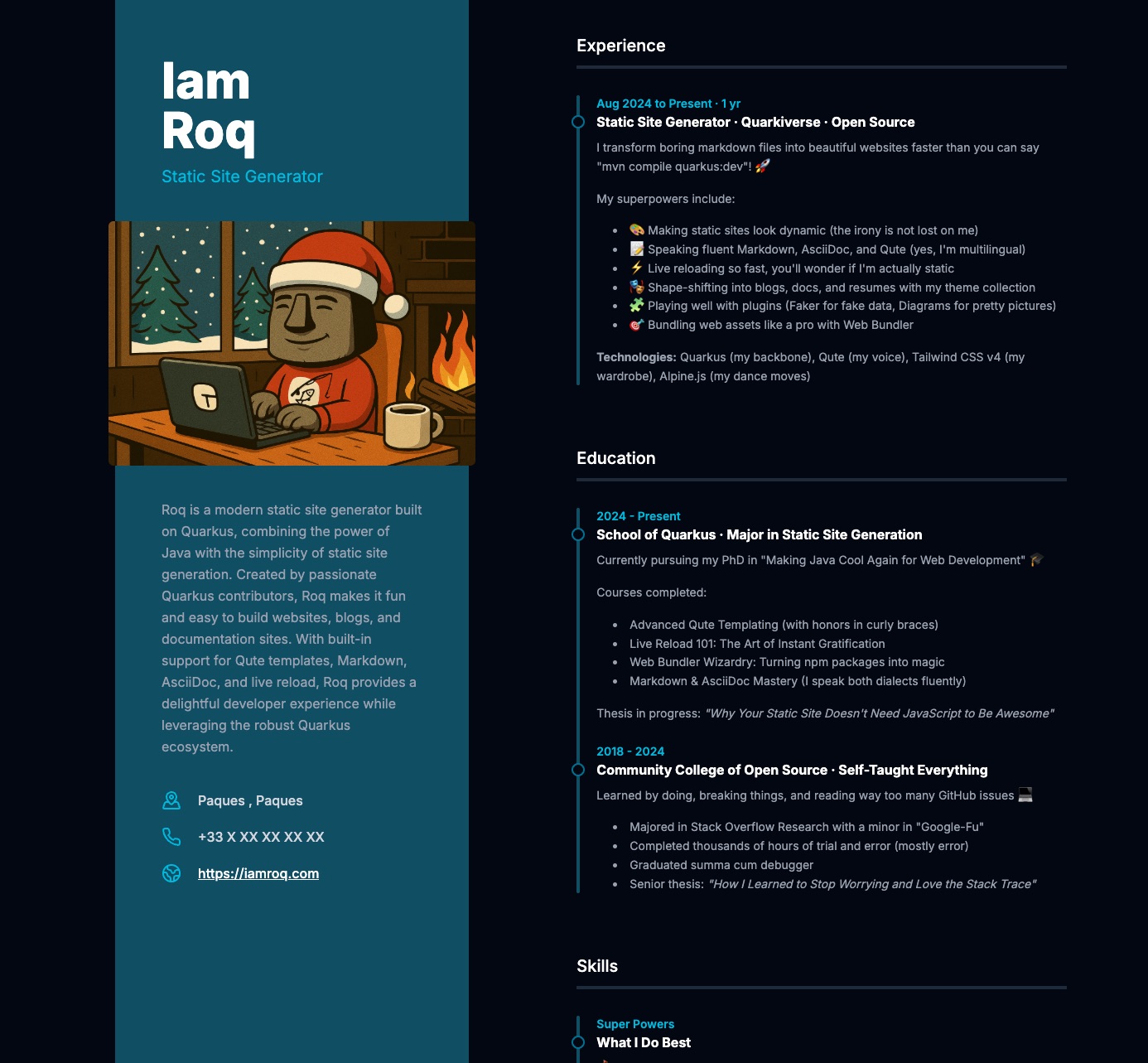
To install this theme, simply add the dependency to your pom.xml.
<dependency>
    <groupId>io.quarkiverse.roq</groupId>
    <artifactId>quarkus-roq-theme-resume</artifactId>
    <version>{cdi:project-info.release.current-version}</version>
</dependency>
Then add your resume info in the data/ dir:
profile.yml
firstName: Ada
lastName: Lovelace
jobTitle: Computational Pioneer
city: London
country: United Kingdom
bio: |
  Ada Lovelace was a 19th-century mathematician known for her visionary work on Charles Babbage's Analytical Engine. She is widely regarded as the first computer programmer, having written the first algorithm intended for machine processing.
bio.yml
- title: Experience
  items:
    - header: "1842 - 1843"
      title: "Mathematician · Self-initiated · London"
      content: |
        Translated and annotated Luigi Menabrea’s paper on Charles Babbage’s Analytical Engine.
        Added extensive original notes, including the first published algorithm designed for a machine.
        Recognized as the first to see the general-purpose potential of computing.

        **Technologies:** Analytical Engine, Algorithmic Thinking, Mathematical Logic

- title: Education
  items:
    - header: "1830 - 1835"
      title: "Private Tutoring"
      content: |
        Studied mathematics and science under Augustus De Morgan and Mary Somerville, two of the most prominent scientific minds of the era.

    - header: "1828 - 1830"
      title: "Home Education"
      content: |
        Received a rigorous classical education at home, emphasizing mathematics, astronomy, and logic.
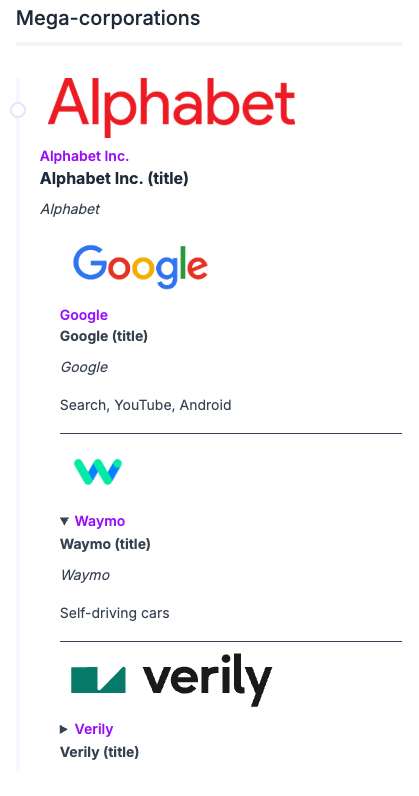
The bio data type now support several improvements for modern, 21st century resumes:
-
A
Logotype, composed of:-
a required
label -
a required
imageUrl -
an optional
linkURL
-
→ This type is useful to render a company logo on your resume.
-
a
subItemselement, which is a list of regular items
→ This allows you to nest items in items in items … you got it. Particularly useful for consulting professionals working on several missions for the same company.
-
a
collapsibleflag, to allow expanding/collapsing an item -
a
collapsedflag, to define an item’s default state when rendering your resume -
a
rulerflag, to draw an horizontal ruler after an item content
Let’s see an example:
bio.yml
- title: Mega-corporations
  items:
    - logo:
        link: https://abc.xyz/
        label: Alphabet Inc.
        imageUrl: logos/sample/alphabet_footer_logo.png
      header: Alphabet Inc.
      title: Alphabet Inc. (title)
      collapsible: false
      content: |
        *Alphabet*
      subItems:
        - logo:
            link: https://www.google.com/
            label: Google
            imageUrl: logos/sample/google.png
          header: Google
          title: Google (title)
          collapsible: false
          ruler: true
          content: |
            *Google*

            Search, YouTube, Android
        - logo:
            link: https://waymo.com/
            label: Waymo
            imageUrl: logos/sample/waymo.webp
          header: Waymo
          title: Waymo (title)
          collapsible: true
          collapsed: false
          ruler: true
          content: |
            *Waymo*

            Self-driving cars
        - logo:
            link: https://verily.com/
            label: Verily
            imageUrl: logos/sample/verily-logo.svg
          header: Verily
          title: Verily (title)
          collapsible: true
          collapsed: true
          ruler: false
          content: |
            *Verily*

            Life sciences
is initially rendered as this:
social.yml
- name: LinkedIn
  url: https://www.linkedin.com/in/ada-lovelace/
- name: X
  url: https://x.com/ada-lovelace
- name: Bluesky
  url: https://bsky.app/profile/ada-lovelace.bsky.social
Color Themes
The resume theme comes with 5 pre-configured color schemes that you can easily switch between. Each theme provides carefully selected colors that work well in both light and dark modes (Purple, Blue, Emerald, Amber, Rose and Cyan).
How to Apply a Theme
To use an alternate theme, create a stylesheet file in your project’s web/style.css directory and import the theme:
/* Available: _theme-blue.css, _theme-emerald.css, _theme-amber.css, _theme-rose.css, _theme-cyan.css */
@import "./_theme-blue.css";
Custom Theme Colors
You can also create your own custom color scheme by overriding the theme variables in your style.css (See example)
The theme uses Tailwind CSS v4 color palettes. Available colors include: slate, gray, zinc, neutral, stone, red, orange, amber, yellow, lime, green, emerald, teal, cyan, sky, blue, indigo, violet, purple, fuchsia, pink, and rose.